
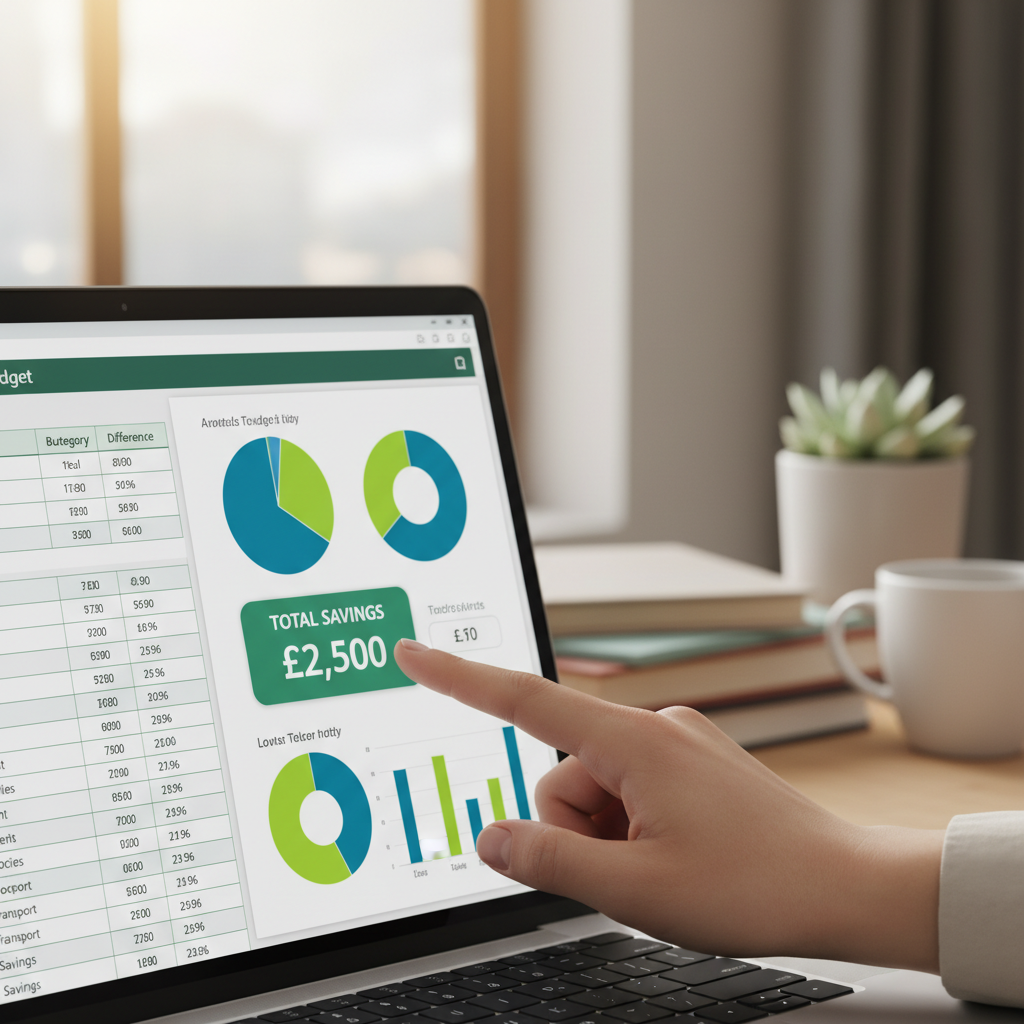
Excel for Non-Techies: Create a Secure Budget Tracker in Minutes
Let’s get real. You know you need to track your money, but the thought of another monthly subscription for a budgeting app makes your wallet ache. They’re bloated with features you don’t need, they want to link directly to your bank accounts, and let’s be honest—who knows what they’re doing with your data? It feels like you have to pay someone just to figure out where your own money is going. That’s not just ironic; it’s a hustle, and you’re the one getting played.
Forget that noise. The most powerful, private, and customizable financial tool on the planet is probably already sitting on your computer: a simple spreadsheet. Whether it’s Microsoft Excel or Google Sheets, you have everything you need to build a lean, mean, money-tracking machine that works for you, not some Silicon Valley company. This isn’t about becoming a spreadsheet guru. This is about taking five minutes to build a system that puts you back in the driver’s seat of your financial life. No subscriptions, no data sharing, no nonsense. Just you, your goals, and a clear view of your cash flow. Let’s build it.
Why Bother With a DIY Tracker? (The Control Play)
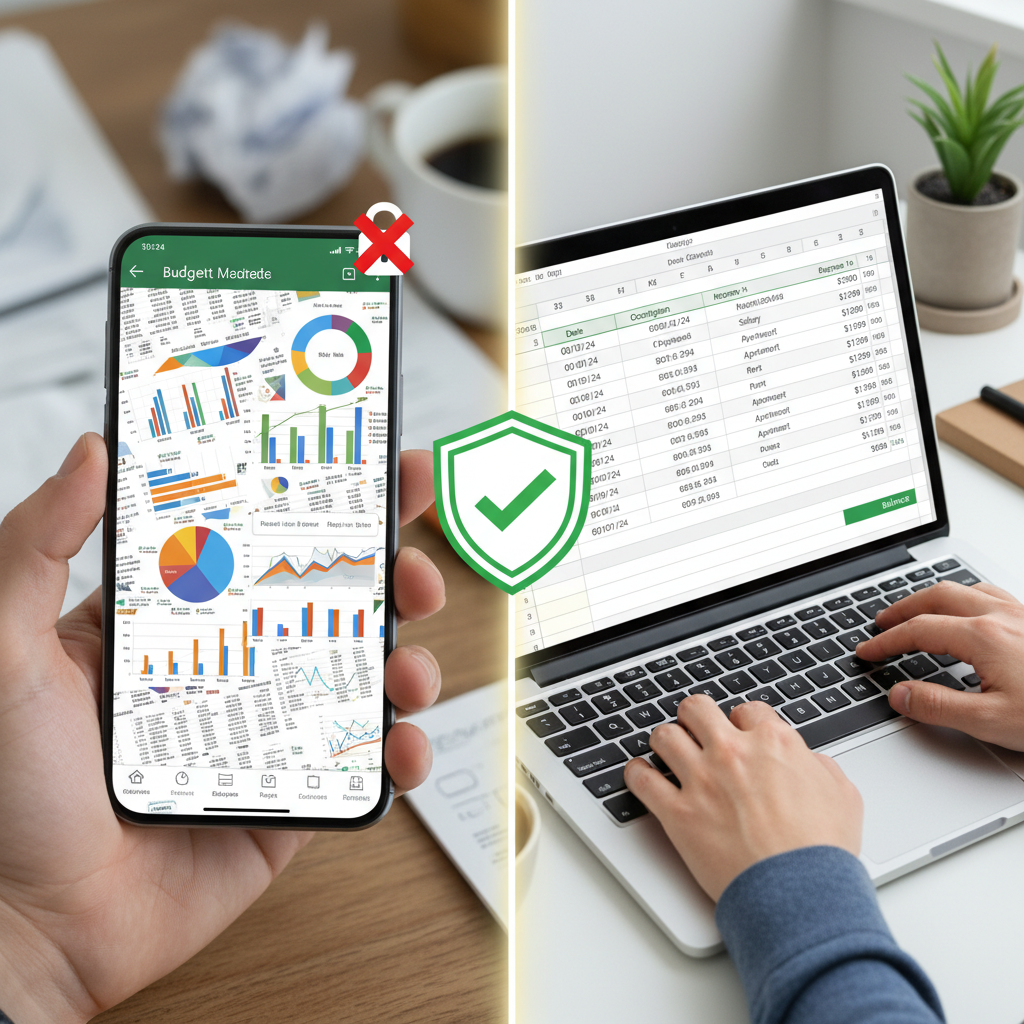
Before we dive into the nuts and bolts, let’s talk about the ‘why’. Why spend even ten minutes setting this up when you could download an app? Because this is a power move. This is about reclaiming control from companies that profit from your financial life. The benefits aren’t just about saving a few bucks on a subscription; they’re about a fundamental shift in how you manage your money.
Benefit 1: Zero Monthly Fees. Ever.
The average budgeting app costs around $10-$15 per month. That might not sound like a lot, but let’s do the street-smart math. At $15/month, you’re shelling out $180 a year. That’s $180 that could have paid off a bill, been invested in your side hustle, or just been a guilt-free dinner out. Your DIY tracker in Excel or Google Sheets? The cost is zero. You save $180 a year, every year, just by walking away from the subscription model. That’s the first win.
Benefit 2: Your Data is Your Business
When you link a budgeting app to your bank account, you’re handing over the keys to your entire financial history. These companies often anonymize and sell that spending data to third parties. It’s their business model. With a spreadsheet you built, your data lives on your computer and your computer alone. It’s 100% private. No creepy algorithms analyzing your purchases, no data breaches to worry about. You are the only one who sees your numbers. Period.
Benefit 3: Built for You, By You
Budgeting apps are one-size-fits-all. They’re packed with features for every possible user, which means they’re cluttered with stuff you’ll never use. Your tracker will be different. It will be exactly what you need it to be. Do you just need to track income and expenses for your side hustle? Done. Want to create specific savings goals for a vacation? Easy. You build the system around your life, not the other way around. This isn’t just a tracker; it’s your personalized financial command center.
The 5-Minute Setup: Building Your Core Tracker

Alright, enough talk. Time for action. Open up a blank sheet in Excel or Google Sheets. We’re going to build the engine of your financial tracker right now. No complicated functions, just simple, powerful logic.
- Lay Down the Foundation (The Columns): In the first row, create your headers. You only need six essential columns to start. In cell A1, type ‘Date’. In B1, ‘Category’. In C1, ‘Item/Description’. In D1, ‘Income’. In E1, ‘Expense’. And in F1, ‘Balance’. That’s it. This is your transaction log.
- Format for Clarity: This makes it easier to read at a glance. Select columns D, E, and F by clicking and dragging across the letters at the top. Right-click and choose ‘Format Cells’. Select ‘Currency’ from the list. Now, any number you type in these columns will automatically show up with a dollar sign and two decimal places.
- The Magic Formula (The Running Balance): This is the one and only formula you absolutely need. It automatically calculates your balance after every single transaction. Go to cell F2. This is where your first balance will appear. We’ll start by linking it to your first income/expense entry. Type this formula exactly: =D2-E2. Now, for the real magic. Go to cell F3. Type this formula: =F2+D3-E3. This tells Excel: ‘Take the balance from the line above (F2), add any income from this line (D3), and subtract any expense from this line (E3)’.
- Drag and Conquer: See that little square at the bottom-right corner of cell F3? Click it and drag it down as far as you want—say, to row 500. The formula will automatically copy itself all the way down, adjusting for each row. Now your balance will update in real-time with every entry you make.
You’ve just built a fully functional budget tracker. Seriously, that’s the core of it. Every time you spend or earn money, you just add a new line, and the sheet does the rest. It’s simple, clean, and you made it yourself.
Level Up: Creating a Smart Dashboard
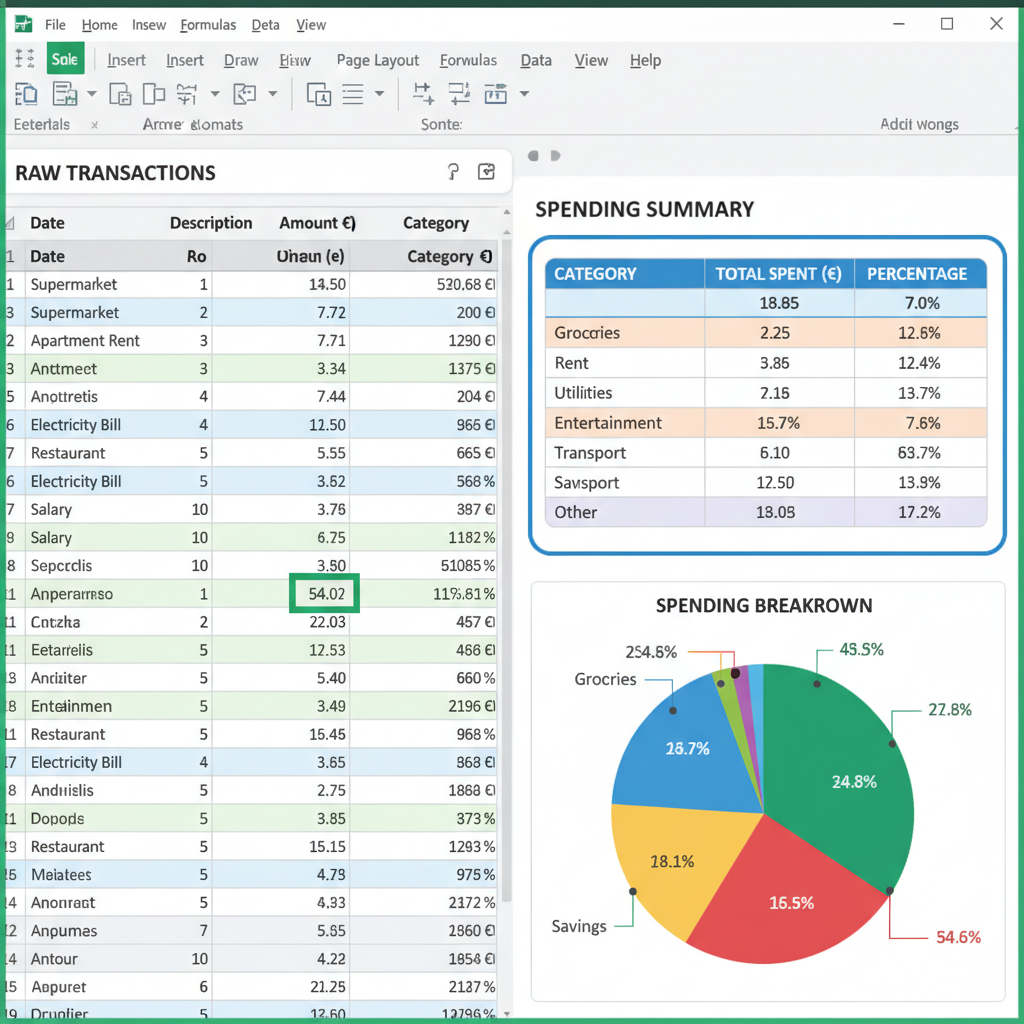
A running log is great, but the real power comes from seeing where your money is actually going. This is where most people get intimidated by spreadsheets, but it’s shockingly easy. We’re going to create a simple summary dashboard that tells you everything you need to know in a single glance.
Step 1: Define Your Categories
First, you need to be consistent with your categories in column B of your tracker. This is crucial. Choose categories that make sense for your life. Here are some common ones:
- Income (Paycheck, Side Hustle)
- Housing (Rent/Mortgage, Utilities)
- Transportation (Gas, Public Transit)
- Food (Groceries, Restaurants)
- Debt (Student Loan, Credit Card)
- Personal (Shopping, Hobbies)
- Savings
Step 2: Build the Summary Table
On the same sheet, or on a new one (click the ‘+’ at the bottom to add a new tab), create a small table. In one column, list out the exact names of your expense categories (e.g., ‘Groceries’, ‘Gas’, ‘Rent’). In the column next to it, we’ll use one simple formula to do all the heavy lifting: SUMIF.
Let’s say your expense categories are in column H, starting at H2. In cell I2, next to ‘Groceries’, you’ll type: =SUMIF(B:B, H2, E:E).
Let’s break that down in plain English: SUMIF( Where to look for the category? [Column B], What category to look for? [The word in cell H2], Where are the numbers to add up? [Column E] ). It literally finds every single time you wrote ‘Groceries’ and adds up the corresponding amount from your ‘Expense’ column.
Drag this formula down next to your other categories, and boom—you have an instant, automated summary of your spending. Here’s how it looks:
| Category | Total Monthly Spend |
|---|---|
| Groceries | $450.25 (Auto-calculated by SUMIF) |
| Gas | $120.50 (Auto-calculated by SUMIF) |
| Utilities | $185.00 (Auto-calculated by SUMIF) |
| Fun Money | $210.75 (Auto-calculated by SUMIF) |
This simple dashboard is a game-changer. It transforms your list of transactions into actionable intelligence. You can see your financial weak spots instantly, without having to dig through rows and rows of data.
The Security Lockdown: Protecting Your Financial Data

We chose this DIY route for privacy, so let’s make sure it’s locked down tight. Leaving your financial spreadsheet unprotected on a shared computer is like leaving your wallet on a park bench. Here’s how to secure your file in under 60 seconds.
For Microsoft Excel:
- Go to File in the top-left corner.
- Select Info from the sidebar.
- Click on the Protect Workbook box.
- Choose Encrypt with Password from the dropdown menu.
- Enter a strong password, then re-enter it to confirm.
For Google Sheets:
While you can’t password-protect a specific Google Sheet file, your file is protected by your Google account password. The key here is ensuring your account is secure. The best way to do this is with Two-Factor Authentication (2FA).
- Go to your Google Account security settings.
- Find the ‘Signing in to Google’ section and click on 2-Step Verification.
- Follow the on-screen steps to add your phone number or an authenticator app.
This means that even if someone gets your password, they can’t access your files without a code from your phone. It’s a non-negotiable step for protecting sensitive data.
Your budget is your business. A simple password or 2FA is the digital lock on your financial front door. Don’t leave it wide open. Use it.
The Payoff: How This Simple Sheet Makes You Richer
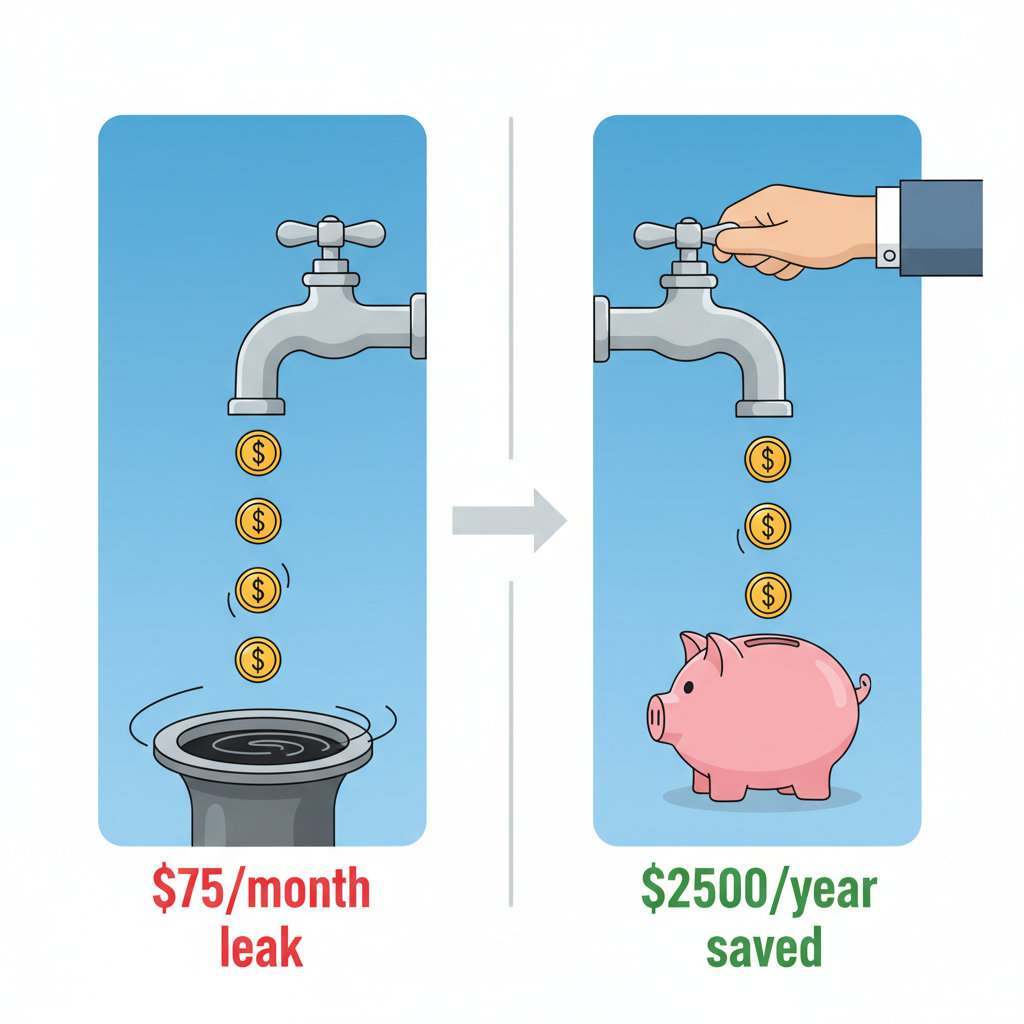
A budget tracker isn’t about restricting yourself; it’s about finding opportunities. It’s a tool for financial offense, not just defense. Once you have a few weeks of data in your new tracker, you’ll start to have ‘aha!’ moments where you see exactly where your money is leaking away. This is where you go from just tracking to actively getting richer.
The Math Example: Exposing the ‘Subscription Creep’
You build your summary dashboard and see a category called ‘Subscriptions’. The total is $75/month. You look at the transaction log and realize it’s made up of a gym you haven’t visited in months ($40), a streaming service you forgot you had ($15), and a premium app you no longer use ($20). Before, this was invisible. Now, it’s a flashing red light. You make three quick calls and cancel them all.
Savings: $75 per month. That’s $900 per year. You just gave yourself a $900 raise in 15 minutes, all thanks to a simple spreadsheet.
The Math Example: Taming the ‘Lunch Leech’
Your dashboard shows your ‘Restaurants’ category is at $400 for the month. You scan the transaction log and see a pattern: you’re buying lunch at work for $15 almost every day. It feels small in the moment, but the tracker shows you the brutal truth.
The Fix: You decide to pack a lunch just three times a week. Let’s say making lunch at home costs $4. You’re saving $11 each time you do it. Three times a week is $33 in savings. That’s over $130 a month.
Savings: $130 per month. That’s a whopping $1,560 per year. Add that to the subscriptions you cut, and you’ve just freed up nearly $2,500 a year without getting a new job or starting a new side hustle. You did it just by paying attention, and your tracker was the tool that made it possible.
Conclusion
You did it. You didn’t just read an article; you learned a skill that will pay you back for the rest of your life. You now have the power to create a secure, personalized, and completely free system for managing your money. You’re no longer reliant on apps that charge you a fee to look at your own numbers or treat your private data like a commodity. You have control, you have clarity, and you have a clear path to finding extra money in your own budget.
Don’t just leave this knowledge on the screen. Open a blank spreadsheet right now. Take five minutes and build the foundation we outlined. Log your last few purchases. Start today. This simple sheet is more than just rows and columns; it’s your declaration of financial independence. You’ve got this.